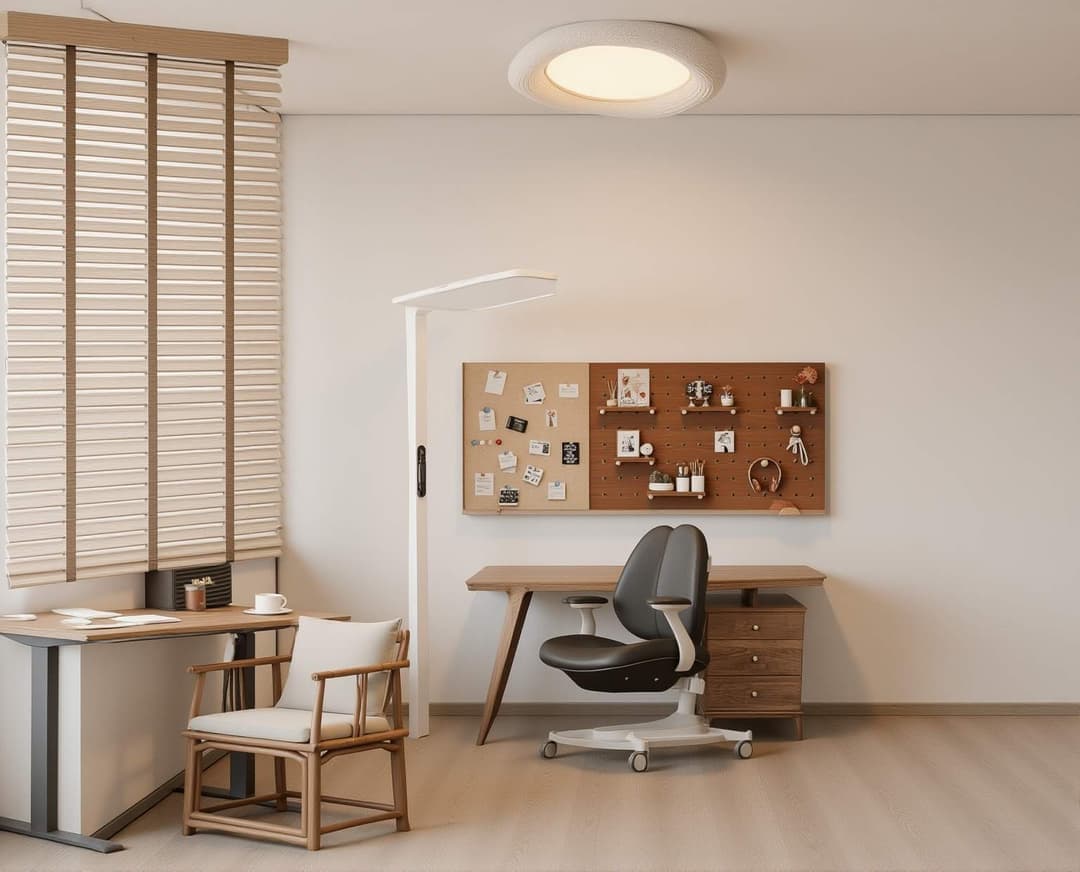
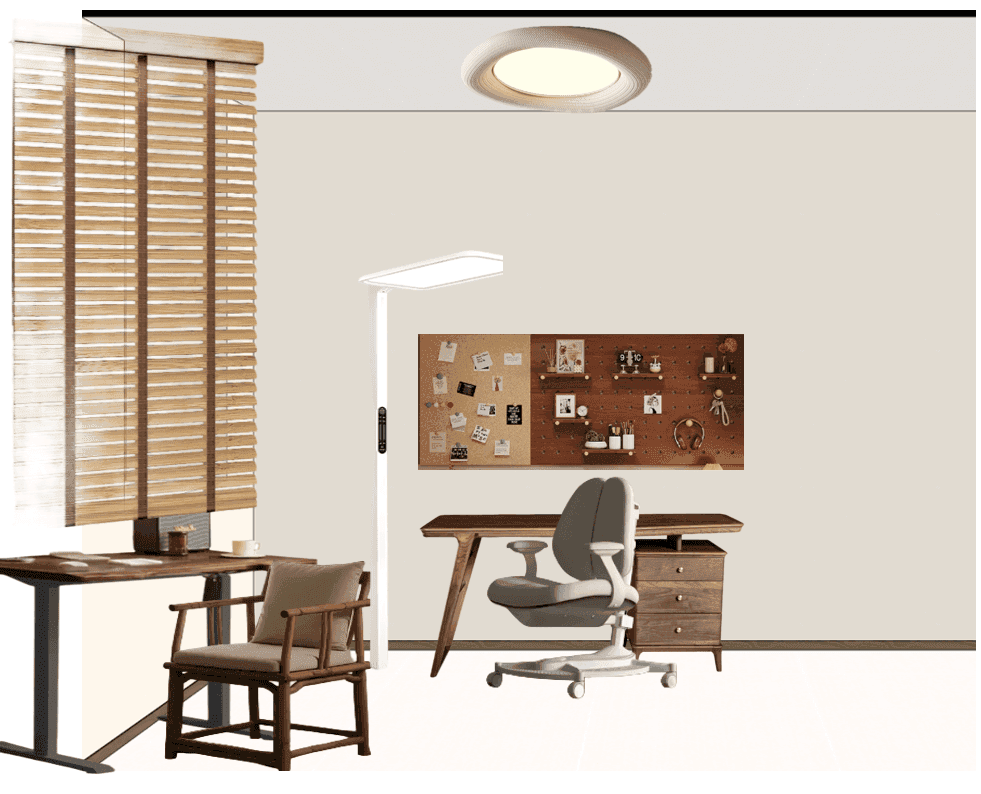
How to use Photo Render
Photo-realistic rendering with perfect lighting. Use a well-lit room photo with doors, windows and floor edges visible. Describe one clear design direction and the existing elements you want to retain.
- 1. Add your referenceUse a well-lit room photo with doors, windows and floor edges visible. For a CAD or 3D model, export the required view as an image first.
- 2. Describe the changeName the style, materials and lighting you want. Choose a matching aspect ratio, then review the credit cost before generating.
- 3. Inspect and refineCheck doorways, furniture proportions, fixed features and circulation against your actual room. Save a useful version before making another change.
Example design brief
Reimagine this kitchen in a warm minimal style. Explore cabinetry, countertops and backsplash finishes. Use a coordinated palette and realistic lighting. Retain the existing layout, windows, doors and fixed features as closely as possible. Create a realistic visual concept with balanced proportions.
See the ai kitchen design & remodel ideas workflow →How many credits does it use?
The current image generator uses 1 credit per submitted generation. New accounts receive 3 starter credits. Revisions are additional generations. View pricing.
What should I check in the result?
Generated images communicate visual ideas. They can change dimensions or fixed details and should be checked against the source, measurements and project requirements.