How to use Photo Render
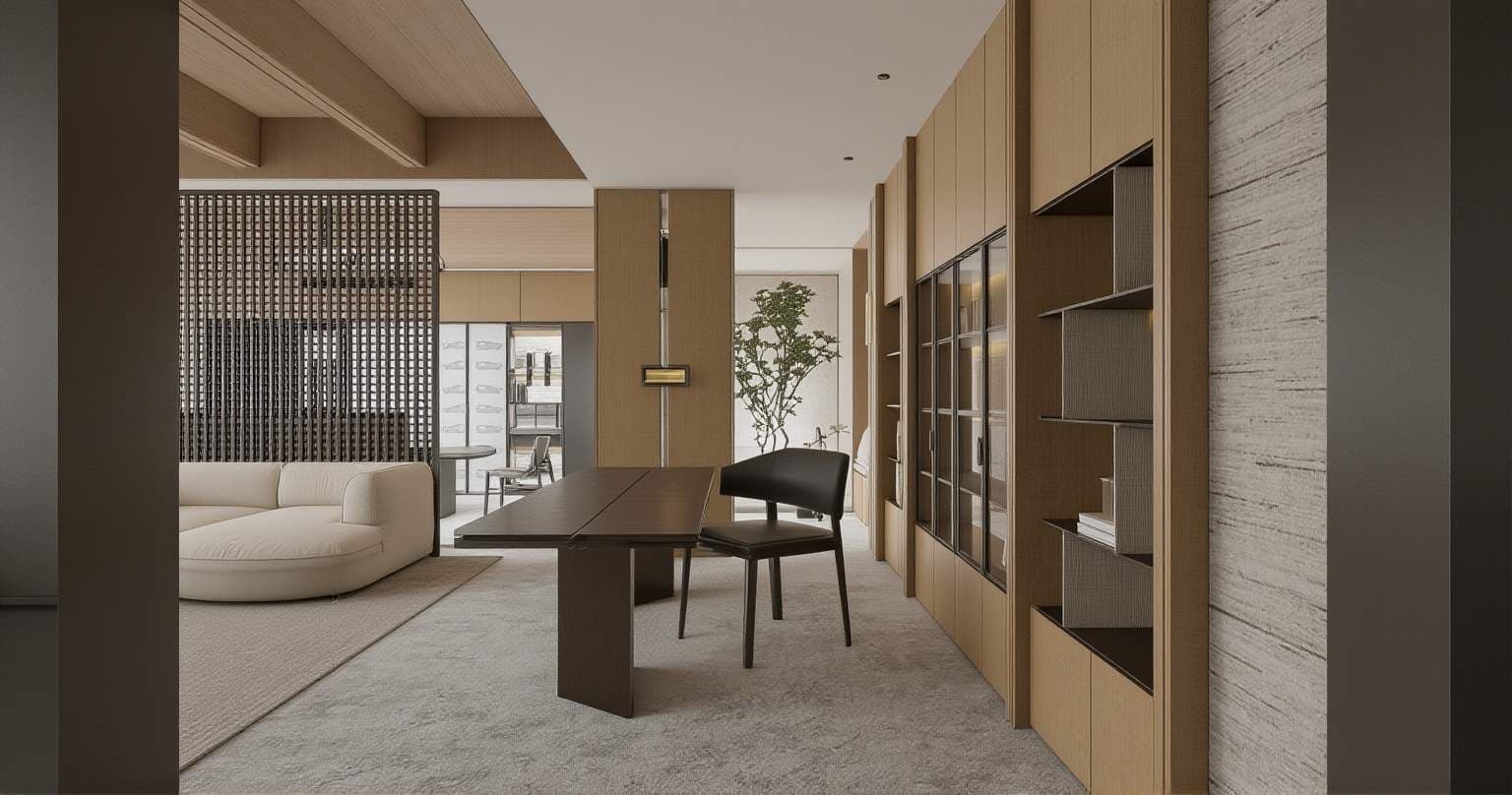
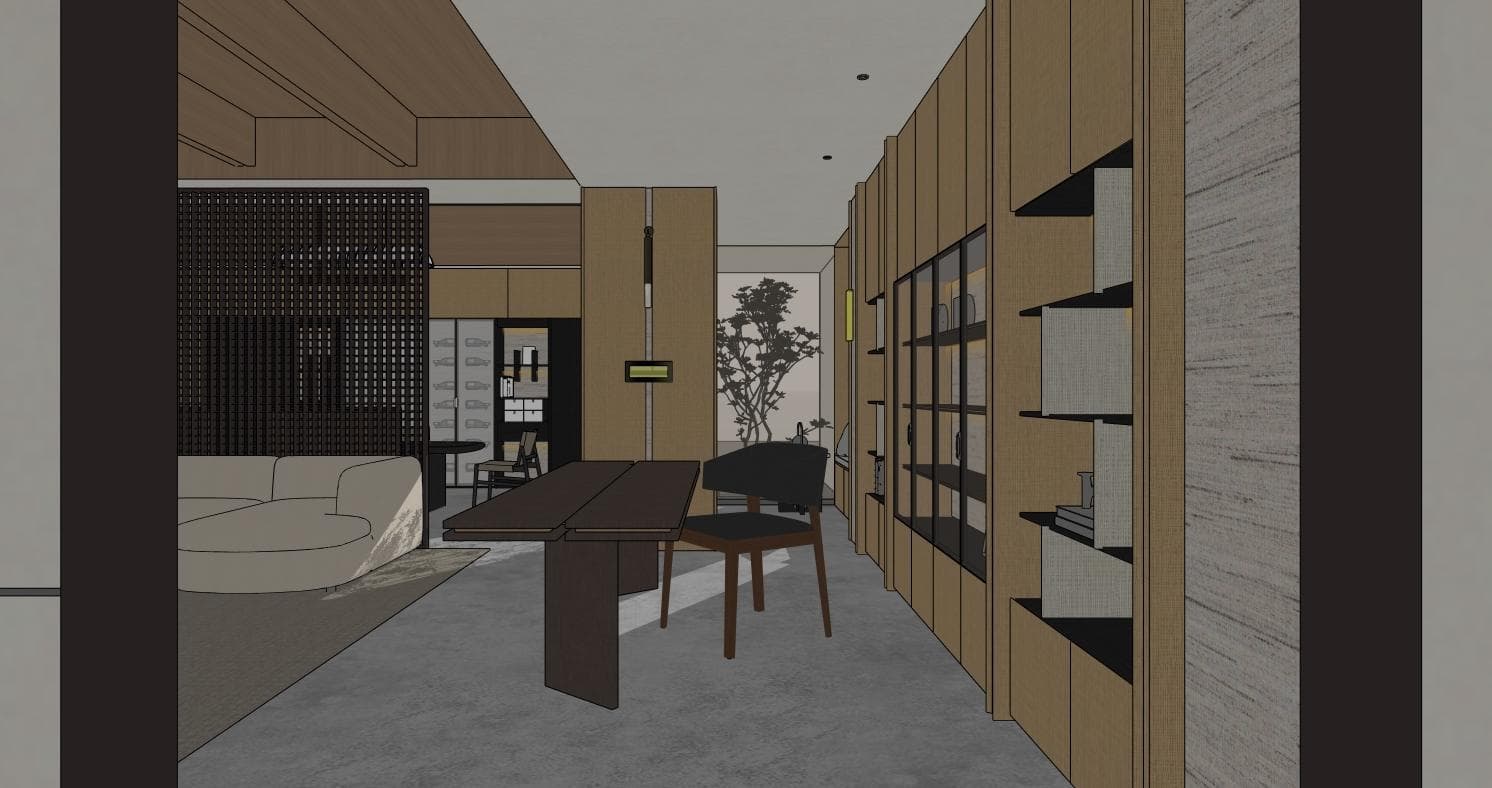
Photo-realistic rendering with perfect lighting. Use a clear building photo, architectural sketch or exported model view. Describe one clear design direction and the existing elements you want to retain.
- 1. Add your referenceUse a clear building photo, architectural sketch or exported model view. For a CAD or 3D model, export the required view as an image first.
- 2. Describe the changeName the style, materials and lighting you want. Choose a matching aspect ratio, then review the credit cost before generating.
- 3. Inspect and refineCheck the building silhouette, roofline, openings and facade details against your source image. Save a useful version before making another change.
Example design brief
Visualize this building as a contemporary residence with light stone cladding, dark window frames and timber accents. Retain the source massing and roofline. Use soft afternoon light and low native planting around the entrance.
See the ai architecture rendering workflow →How many credits does it use?
The current image generator uses 1 credit per submitted generation. New accounts receive 3 starter credits. Revisions are additional generations. View pricing.
What should I check in the result?
Generated images communicate visual ideas. They can change dimensions or fixed details and should be checked against the source, measurements and project requirements.